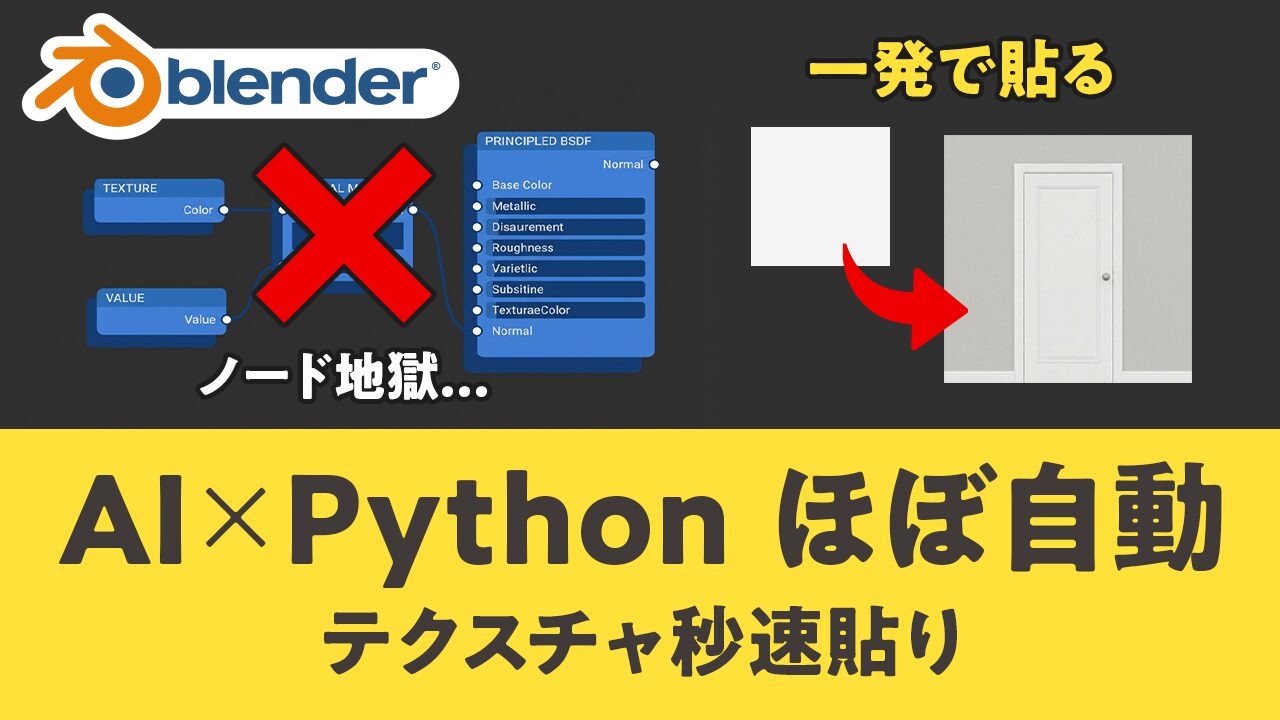
Blenderでテクスチャを貼る作業、意外と手順が多くて大変ですよね。
今回は、AIでテクスチャを作り、BlenderではPythonで一発セットする方法を紹介します。最後にUVを少し調整して、正面だけに自然に貼れるところまで再現します。
▼ドアのテクスチャ生成プロンプト(動画 00:39~)
▼Pythonコード(動画 02:00~)
目次
まずはBlenderに貼るための「扉の画像」をAIで用意します。
この段階でやることはシンプルで、画像を2枚用意するだけです。
Nano Banana Pro(Gemini)で、扉の画像を生成します。
同じ内容で作りたい場合は、下のプロンプトをそのままコピペしてください。
Create a square 1:1 (2048x2048) texture-style image intended for Blender PBR basecolor/albedo use.
Scene / Subject
- A flat mid-gray wall with a single white interior door centered.
- Door: simple white door with subtle, minimal classic panel molding (clean and understated; not ornate).
- Add a round doorknob on the right side at standard height.
- Knob material: matte/satin neutral metal, not shiny.
Composition / Camera
- Front view, orthographic projection, perfectly centered and symmetrical.
- Full door visible. Straight vertical/horizontal lines.
- No perspective distortion, no depth of field, no vignette, no lens distortion, no grain.
Lighting / Look (albedo-friendly)
- Flat, neutral, evenly lit, diffuse only.
- No cast shadows, no highlights, no reflections, no bloom, no ambient occlusion.
- Clean minimal "texture reference / studio scan" look: high detail but low contrast.
- Sharp, clean edges.
Background constraints
- Plain gray wall, smooth plaster.
- No objects, no switches, no baseboards, no floor/ceiling, no text, no logos.
Safety / Originality requirement (important)
- Do not replicate any copyrighted, branded, or recognizable real-world door/product designs.
- Generate an original, generic door design with common, non-distinctive features.
- Avoid distinctive patterns, trademarks, or unique signature shapes.
Negative prompts
- angled view, dramatic lighting, cast shadows, specular glare, strong contrast, tilt, clutter, decorations,
- dirt, stains, cracks, text, logos, watermarks
↓
次に、同じ扉に凹凸(立体感)を付けるためのノーマルマップを作ります。
AIには、たとえば「この扉画像のノーマルマップを作って」のように指示します。
メイン画像とノーマルマップの2枚ができたら、ダウンロードしてPCに保存します。
このあとBlenderのPythonが自動判別しやすいように、ファイル名の末尾をそろえます。
たとえば扉なら、こんな感じにします。
うまくいかない時(ここだけ見てOK)
ここからBlenderです。
手作業だと「ノード追加→接続→設定」が大変ですが、Pythonで自動で一発セットします。
まず、テクスチャを貼りたいオブジェクト(例:キューブ)をクリックして選択します。
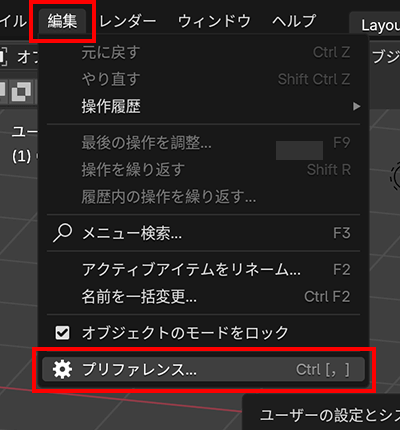
上のタブから を開きます。
を押して、コードを貼る場所を作ります。
下のPythonコードを貼り付けて、 を押します。
import bpy
import os
IMAGE_EXTS = {".png", ".jpg", ".jpeg", ".tif", ".tiff", ".exr", ".bmp", ".tga", ".webp"}
def _build_material(obj, base_color_path: str, normal_map_path: str):
mat = bpy.data.materials.get("AI_Door_Mat")
if mat is None:
mat = bpy.data.materials.new("AI_Door_Mat")
mat.use_nodes = True
if obj.data.materials:
obj.data.materials[0] = mat
else:
obj.data.materials.append(mat)
nt = mat.node_tree
nodes = nt.nodes
links = nt.links
# 既存ノードを全消し(残したい場合はこのブロックをコメントアウト)
for n in list(nodes):
nodes.remove(n)
out = nodes.new("ShaderNodeOutputMaterial")
out.location = (500, 0)
bsdf = nodes.new("ShaderNodeBsdfPrincipled")
bsdf.location = (200, 0)
texcoord = nodes.new("ShaderNodeTexCoord")
texcoord.location = (-800, 0)
mapping = nodes.new("ShaderNodeMapping")
mapping.location = (-600, 0)
tex_base = nodes.new("ShaderNodeTexImage")
tex_base.location = (-350, 150)
tex_base.label = "Base Color (Albedo)"
tex_normal = nodes.new("ShaderNodeTexImage")
tex_normal.location = (-350, -150)
tex_normal.label = "Normal Map"
normal_map = nodes.new("ShaderNodeNormalMap")
normal_map.location = (-80, -150)
img_base = bpy.data.images.load(base_color_path, check_existing=True)
img_norm = bpy.data.images.load(normal_map_path, check_existing=True)
tex_base.image = img_base
tex_normal.image = img_norm
# ノーマルは Non-Color(超重要)
try:
tex_normal.image.colorspace_settings.name = "Non-Color"
except:
pass
links.new(texcoord.outputs["UV"], mapping.inputs["Vector"])
links.new(mapping.outputs["Vector"], tex_base.inputs["Vector"])
links.new(mapping.outputs["Vector"], tex_normal.inputs["Vector"])
links.new(tex_base.outputs["Color"], bsdf.inputs["Base Color"])
links.new(tex_normal.outputs["Color"], normal_map.inputs["Color"])
links.new(normal_map.outputs["Normal"], bsdf.inputs["Normal"])
links.new(bsdf.outputs["BSDF"], out.inputs["Surface"])
normal_map.inputs["Strength"].default_value = 1.0
class AIDOOR_OT_setup_from_files(bpy.types.Operator):
bl_idname = "aidoor.setup_from_files"
bl_label = "読み込む"
bl_options = {'REGISTER', 'UNDO'}
# ✅ 複数ファイル選択を受け取る
directory: bpy.props.StringProperty(subtype="DIR_PATH")
files: bpy.props.CollectionProperty(type=bpy.types.OperatorFileListElement)
# ファイルブラウザで画像だけ見せたい(任意)
filter_glob: bpy.props.StringProperty(default="*.png;*.jpg;*.jpeg;*.tif;*.tiff;*.exr;*.bmp;*.tga;*.webp", options={'HIDDEN'})
def invoke(self, context, event):
if context.active_object is None:
self.report({'ERROR'}, "アクティブオブジェクトがありません。キューブ等を選択してから実行してください。")
return {'CANCELLED'}
context.window_manager.fileselect_add(self)
return {'RUNNING_MODAL'}
def execute(self, context):
# 選択されたファイルのフルパスを作る
selected_paths = []
if self.files:
for f in self.files:
p = os.path.join(self.directory, f.name)
selected_paths.append(p)
if not selected_paths:
self.report({'ERROR'}, "ファイルが選択されていません。_albedo と _normal の2枚を複数選択してください。")
return {'CANCELLED'}
# _albedo / _normal を判別
albedo_path = None
normal_path = None
for p in selected_paths:
base = os.path.basename(p)
stem, ext = os.path.splitext(base)
if ext.lower() not in IMAGE_EXTS:
continue
s = stem.lower()
if s.endswith("_albedo") and albedo_path is None:
albedo_path = p
if s.endswith("_normal") and normal_path is None:
normal_path = p
# 必須チェック
if not albedo_path or not normal_path:
picked = ", ".join([os.path.basename(x) for x in selected_paths])
self.report(
{'ERROR'},
"判別に失敗しました。\n"
"選んだファイル名の末尾が `_albedo` と `_normal` になっている必要があります。\n"
f"選択: {picked}"
)
return {'CANCELLED'}
obj = context.active_object
_build_material(obj, albedo_path, normal_path)
self.report(
{'INFO'},
f"✅ セット完了\nAlbedo: {os.path.basename(albedo_path)}\nNormal: {os.path.basename(normal_path)}"
)
return {'FINISHED'}
def _safe_unregister(cls):
try:
bpy.utils.unregister_class(cls)
except:
pass
def register():
_safe_unregister(AIDOOR_OT_setup_from_files)
bpy.utils.register_class(AIDOOR_OT_setup_from_files)
if __name__ == "__main__":
register()
# ✅ Run Script直後にファイル選択ダイアログを開く
bpy.ops.aidoor.setup_from_files('INVOKE_DEFAULT')
実行すると、画像を選ぶ画面が出ます。
保存しておいた _albedo と _normal の2枚を選んで読み込みます。
タブを開きます。
ノードが自動で組まれて、テクスチャも貼られた状態になっていれば成功です。
凹凸感を強くしたい場合は、「ノーマルマップ」ノードの「強さ」を上げます。
うまくいかない時(ここだけ見てOK)
最後に、扉の絵が正面だけに出るようにUVを整えます。
この作業をしないと、扉の絵が横や上の面にも貼られてしまって不自然になります。
上のタブから を開きます。
扉を見せたい正面の面を選択します。
(選ばれている面がハイライト表示になっていればOKです)
左側のUV画面で、正面のUVを「扉の絵」にぴったり合わせます。
扉を表示したくない面は、UVを小さくしてテクスチャの余白へ移動します。
これで、横や上の面に扉が映らなくなります。
これで「箱の正面だけに扉が自然に貼られた状態」になります。
うまくいかない時(ここだけ見てOK)